
If you have a MailerLite subscription that you use to send newsletters to your readers, you can integrate it directly with your Bookshelf website.
This makes it so that if you set up any newsletter signup forms on your website, visitors who submit their information will automatically added to your preferred MailerLite lists and email automations without having to add them yourself manually one by one.
If you're selling direct, you'll also be able to add new customers to your relevant email lists via this integration (as long as they opted into your newsletter when they made their purchase).
Setting Up the Integration
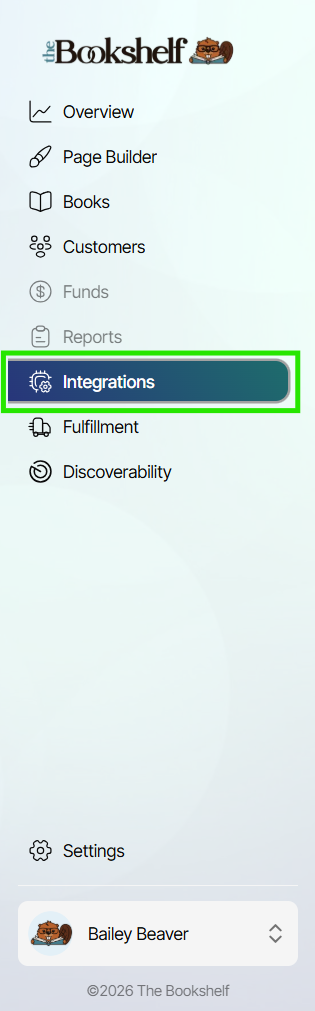
You'll find the MailerLite integration under the Integrations menu item on your main Bookshelf account dashboard:
If you have yet to set up your MailerLite integration for the first time (or you've disconnected a previously-connected MailerLite account), you'll see a "Configure" button next to the MailerLite option on this integrations page:
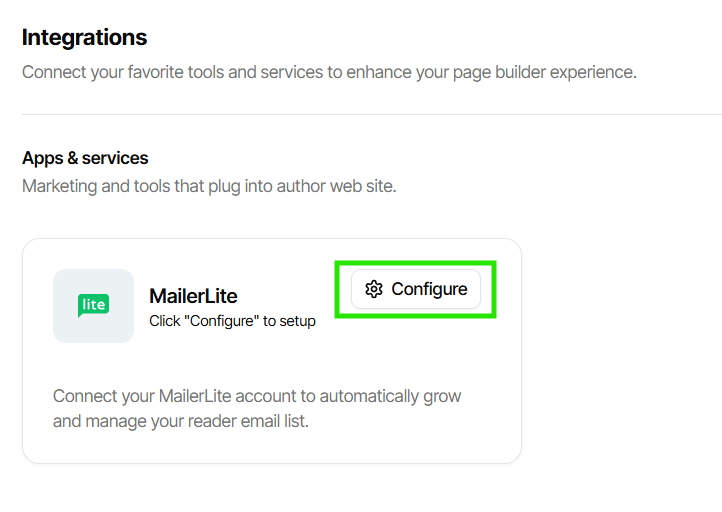
When you click "Configure," you'll next be asked for an API token from your MailerLite account. An API token (also called an API key) is a unique code that acts like a digital password to authenticate a program or user when connecting it to an Application Programming Interface (API). This code is going to let your MailerLite account know where the request is coming from and what to do when someone signs up for your mailing list.
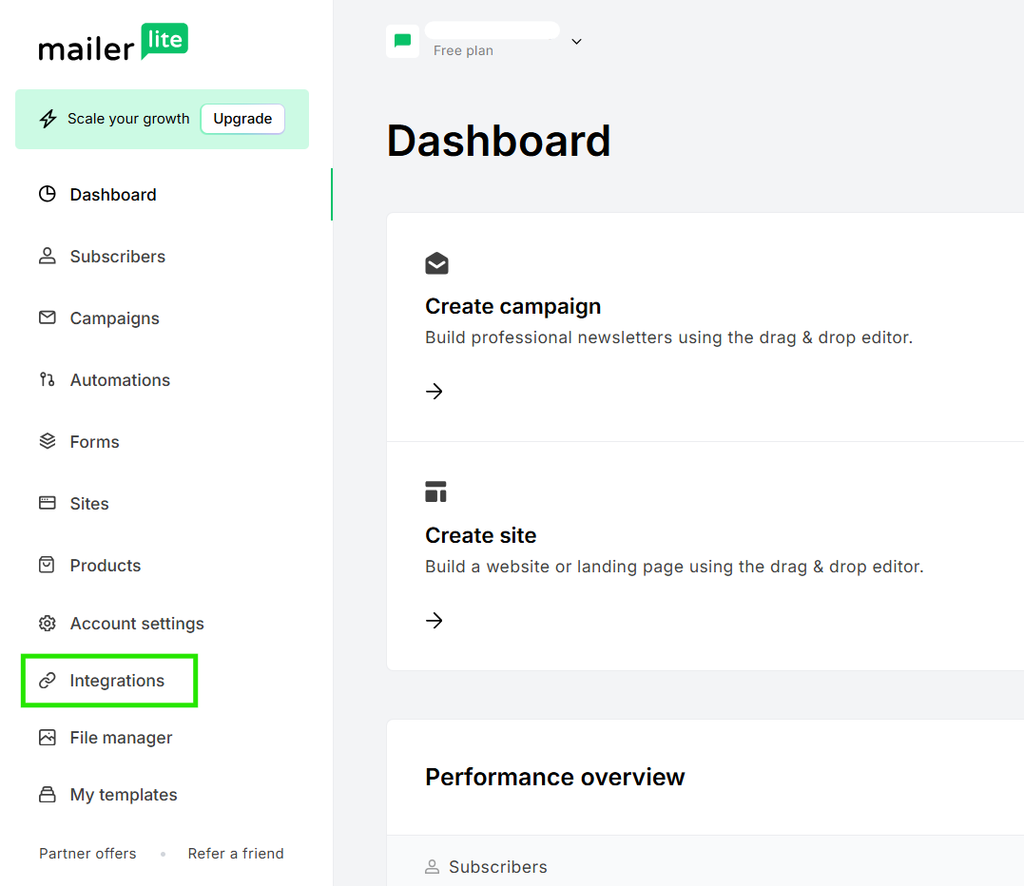
To generate an API token in your MailerLite account, first log in at accounts.mailerlite.com. Inside your MailerLite dashboard, click Integrations:
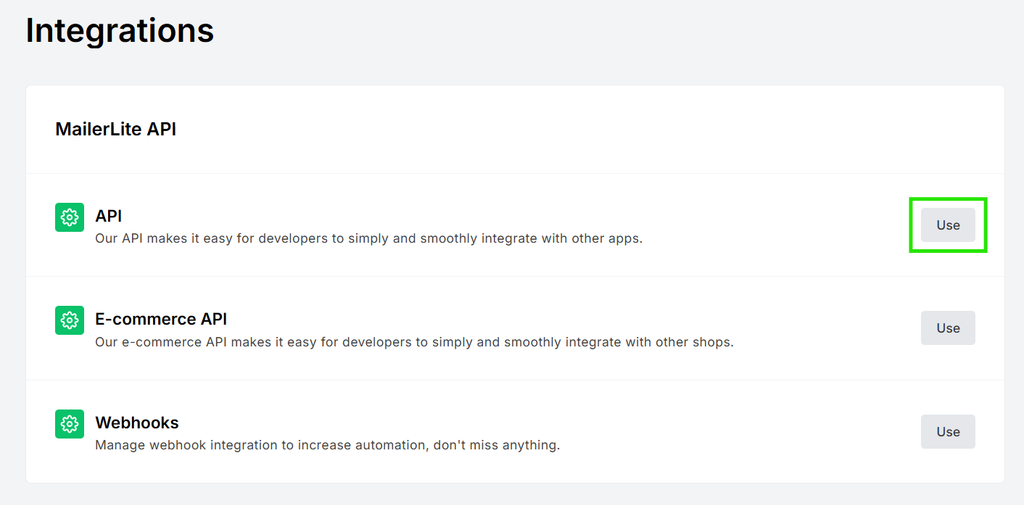
On the Integrations page, next click the "Use" button to the right of the "API" feature:
If you've never created an API token inside your MailerLite account, the page will look like the below. Click the green "Generate new token" button:
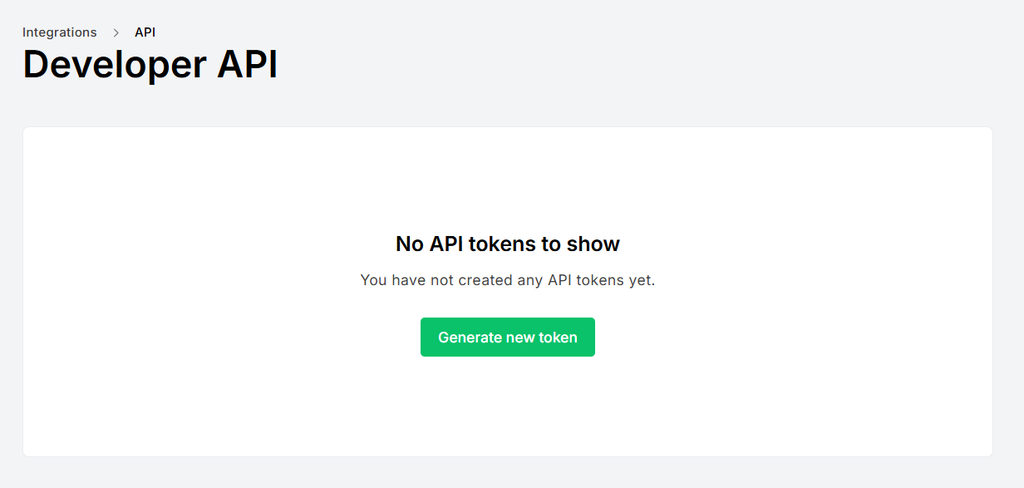
If you have created API tokens for other platforms before, the layout will look a little different, because all your previously-generated API tokens will be listed here. But you'll still click the same green "Generate new token" button, which will be located on the right of the screen side instead of in the center.
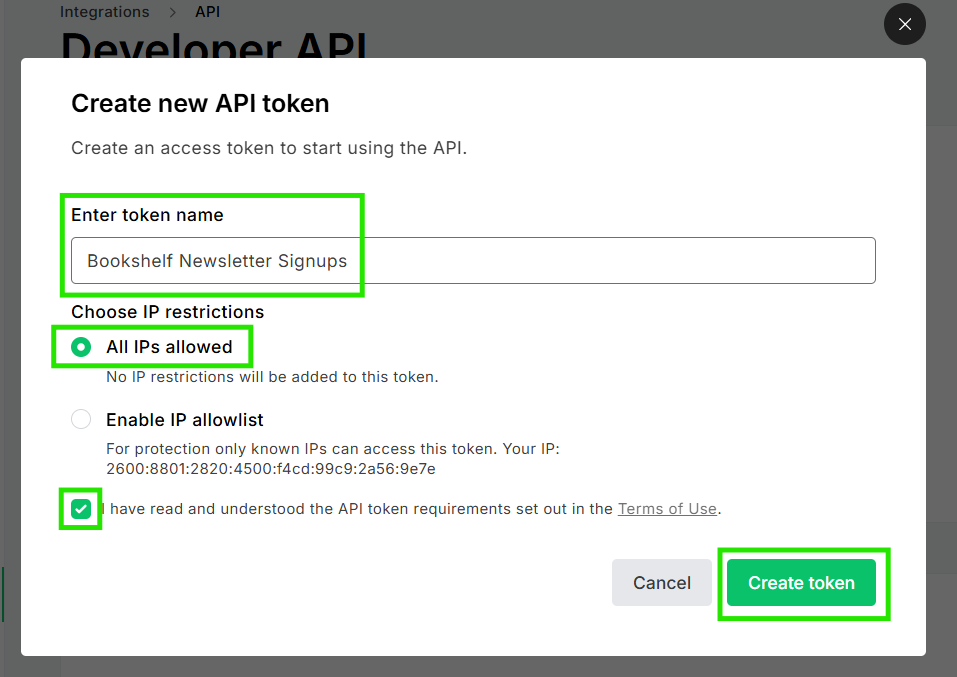
After you click the button, enter a token name (this name can be whatever you'd like, but we recommend something that makes it easily identifiable, such as "Bookshelf Newsletter Signups"). Also make sure you have the "All IPs allowed" option selected under "Choose IP restrictions." Then check the box saying you've read their Terms of Use, and click the green "Create token" button:
On the next screen, your new code will be made available to view within your MailerLite account just this one time, for security purposes. First, click the "Copy" button to copy it to your clipboard so you can paste it where needed inside The Bookshelf. Then, click the green "Download" button to save a copy of this code somewhere on your device if you need to refer back to it later. It will export as a .txt file, which you can save, open, and read like a normal file on most computers.
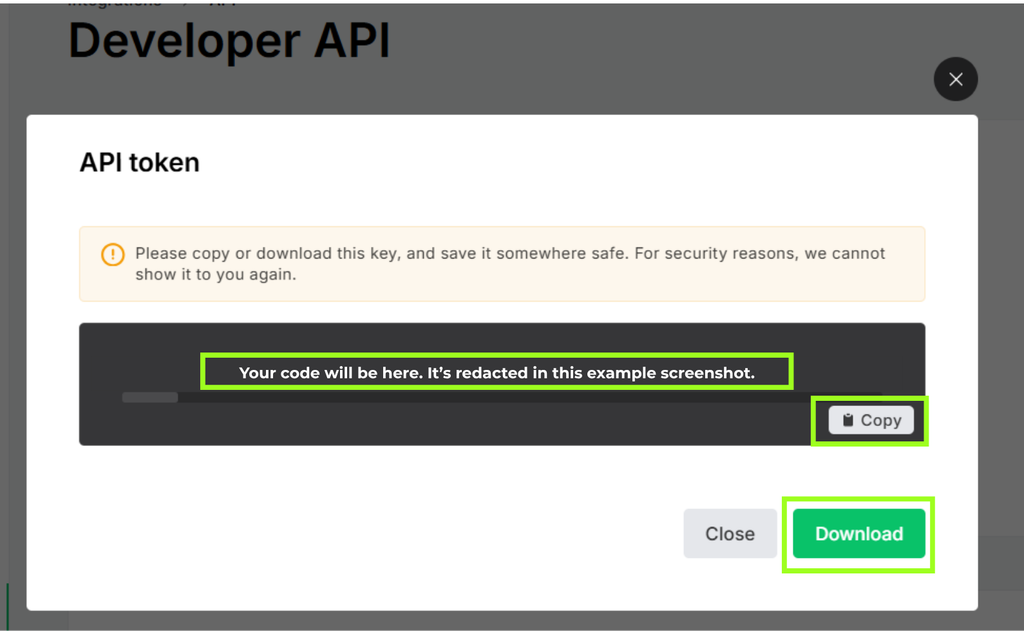
Once you've complete those two steps (Copy and Download), then you can exit out of this window by clicking on the X in the upper right corner of the code window. The MailerLite page will refresh to show your newly-created API token listed in your account.
Next, head back to your Bookshelf account, where you should still have the MailerLite integration steps open. Paste the API token you just copied from MailerLite into the input area on the screen, then click the blue "Connect" button:
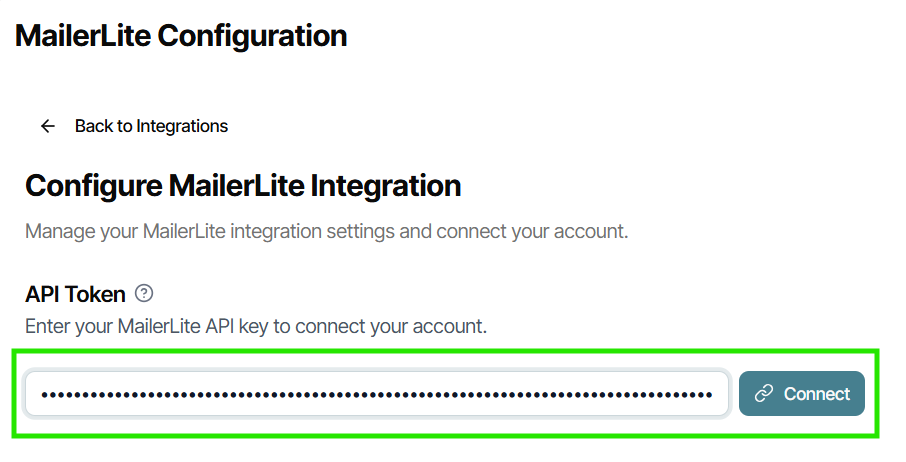
When the connection is successful, a notification will pop up stating that you have "no default groups selected." This just means that your new integration needs to know which "group" or "list" you want new signups to go to when a form is submitted. If you haven't created any such groups in your MailerLite account, you can just select the pre-set "Newsletter" option that appears, and all new signups will simply be added as new contacts in your MailerLite account:
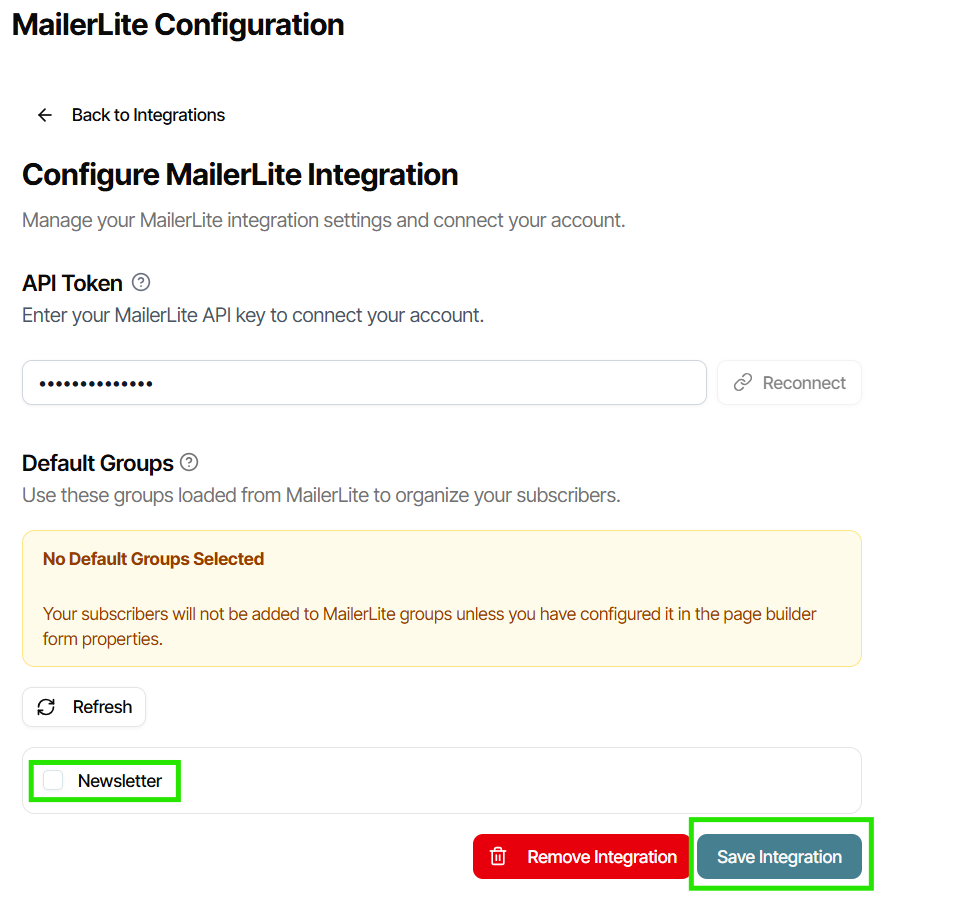
Then, click the "Save Integration" button.
Connecting a Newsletter Form in the Builder
After setting up your MailerLite integration, when you open your website in the Page Builder and click on a Mailing List element that's been placed on a page of your website, the "Choose List" edit option will appear on the left side, allowing you to designate which list you'd like any signups on this form to be sent to:
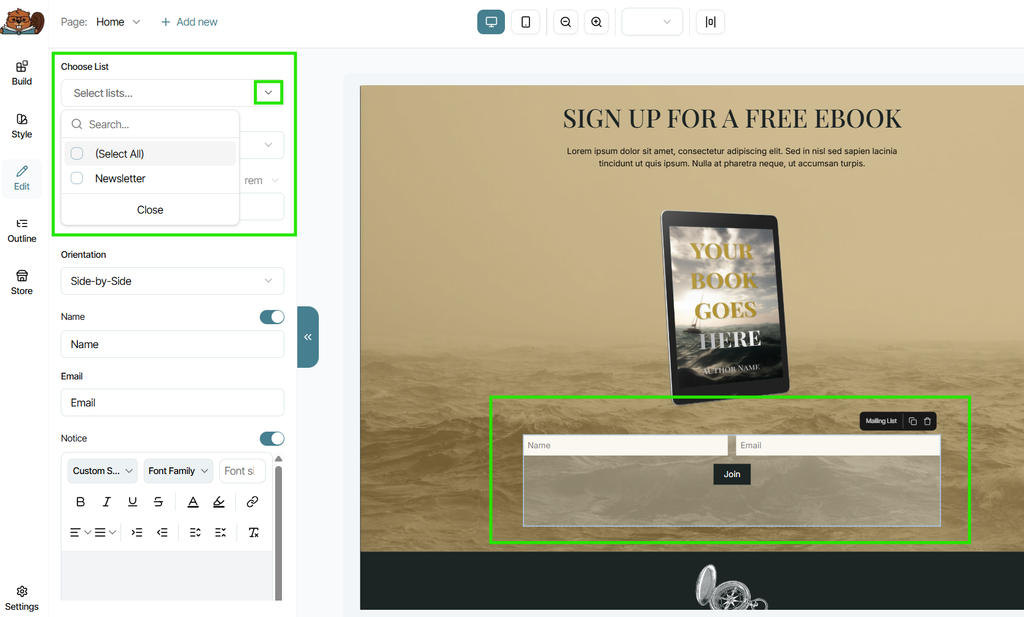
From the dropdown menu, you can select the default "Newsletter" list that appears, or if you've created other lists in your MailerLite account, they will also populate in this list to choose from. This way you can create all your mailing list signup forms to send to the same place, or you can differentiate them based on need, such as by pen name or genre.
Any questions about how to set up your MailerLite integration? Just reach out to our team at support@thebookshelf.io.