
When you add a book to your Bookshelf account, it automatically creates an "automated product page" (also referred to as an "automated book page," if it's just an informational page not meant to sell direct or link to retailers). This feature makes it so that you don't have to independently build a new webpage for each of your books and their formats, meaning you also don't have to manually build your online bookstore, because it's being built for you product by product as you add books.
Automated product pages have pre-set, pre-formatted layouts and design elements that have been carefully constructed by The Bookshelf team to optimize for engaging browsing and sales. For this reason, these pages' overall layout and design can't be altered, but you do have other options when it comes to choosing how the information for each of your books will be displayed.
Your cart and checkout pages work the same way; they are both automatically created to match with your website and be optimized for helping a customer to fully complete the purchase process. You can learn more about automated cart pages here.
How to Access Product Pages
Currently, an example of one of your live product pages can only be viewed using the Page Builder's Preview feature (unless your website is live with linked product pages available). To view one, make sure to add at least one book to your Bookshelf account first. You can choose to add formats or not during this step—a product page is automatically created as soon as the "parent" book project is published.
Once you'd added at least one book, open your website in the Page Builder, then click the Store tool in the left-side menu. This will open an initial example product page showing the layout and content of each page as though multiple formats have been added, and all display settings have been toggled ON:
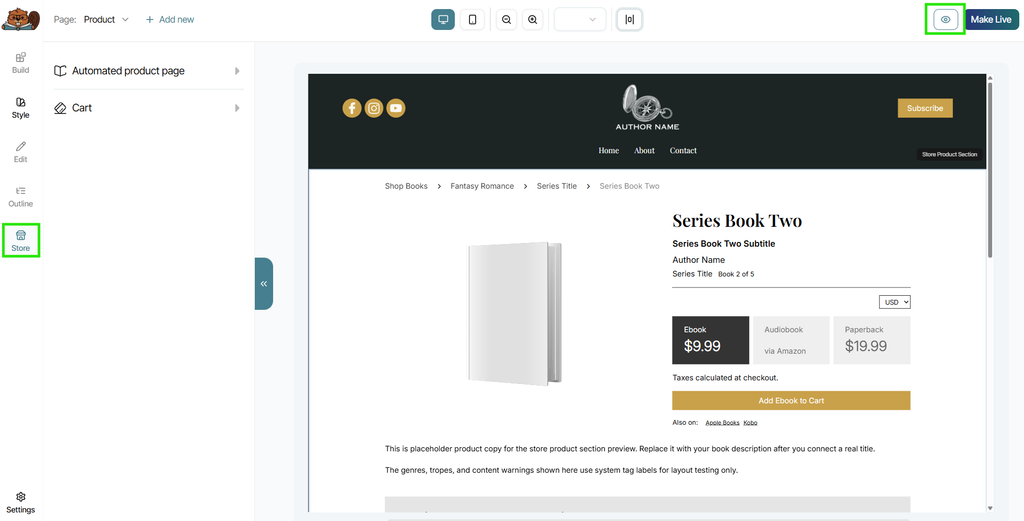
Again, in the Builder, you will not be viewing a "real" product page of one of your books; just a placeholder example of what a page could look like according to your Style settings, which are the settings each product page pulls its design from.
To view a "real" example of one of your books, click on the Previewer icon in the upper left corner of the Builder (also highlighted in the screenshot above). This will pull the information for the very first book listed on your account's Book page to display a "real" preview of:
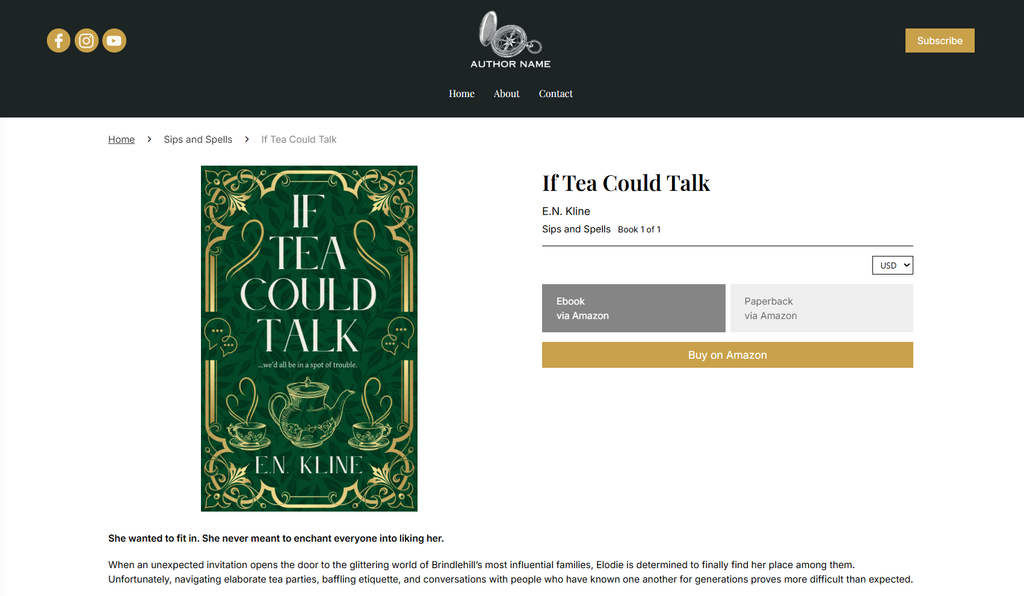
Edit the Content Displayed on Product Pages
When you add a book to your account, you have the option to fill out a variety of information for it, such as title, cover image, description, author, genres, tropes, and more. Any information included for each of your books has the potential to appear on that book's corresponding product page, but only if it is toggled "ON" in your product page settings.
To access your product page content display settings, click Store while in the Builder, then click "Automated Product Page":

A categorical list will appear of the various types of content that displays on every product page. By default, every new website will have all options toggled to the "ON" positioning, meaning every single option will appear on every singe product page regardless of whether the information has been filled out for that individual book.
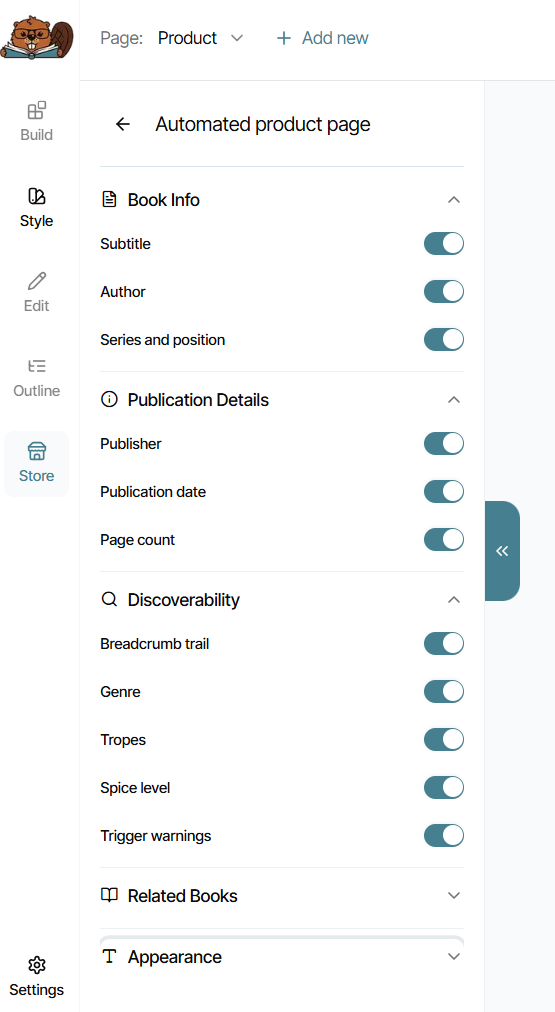
For any types of content that you do not want displayed on all of your product pages (e.g. any that might not be relevant to your books, such as series name, spice/heat rating, or trigger warnings), just toggle it to the "OFF" position. You'll see it change in real-time in the example page in the viewer when you do.
Note that all product pages across your website will all display these universal settings set in these categories; currently, what displays on product pages cannot be altered independently page by page.
Automated Product Page Design
As mentioned, your automated product pages are going to automatically pull their general designs from the overall Style settings for your website. This helps to make sure your product pages (and cart and checkout pages, too) have a unified look with the rest of your site.
However, you do have some limited design selections you can adjust. To do so, click on the "Appearance" category when working inside your product pages:

Under Appearance settings, you have the option to make changes to your:
- Product Title Style (based on Typography Style settings)
- Product Title Size (any font size)
- Text color (for the entire page)
- Button Style (for your "Add to Cart" button)
Outside of these options, all other design settings, such as colors and additional, non-title fonts, are automatically applied based on your Style settings. This, again, is to ensure a unified look across every piece of your website, but it also helps to cause less design overwhelm and possible confusion during the shopping process for visitors, which can lead to a higher conversion of sales.
Automated Book Pages vs. Automated Product Pages
You may see The Bookshelf refer to these automated pages in two ways: as product pages, or as book pages. Overall, they refer to the same automated page as we've just detailed. The only difference is that a book page will have no purchase options (including no links to third-party retailers), while a product page will include at least one type of purchase option, making the featured book a true "product" available for sale.
An automated book page is great to create if you would like to still like to have a dedicated page with information about a book that you might not be ready to sell direct, or that might not yet be available on other retailers either. This is most common for upcoming books that are not yet published, but that you'd still like visitors to learn about.
If you have any questions about automated product pages, feel free to reach out to support@thebookshelf.io.