
Depending on your levels of comfort, skill, and time, you can opt to create your Bookshelf author website entirely from scratch, or by customizing one of our pre-made templates. For most authors, our best recommendation is usually to start with a pre-made template and make it their own.
All the templates available in the Builder have been professionally designed and crafted to serve a specific purpose or goal, coupled with a type of "theme." At the same time, every single one of them is completely customizable, meaning you can (and should!) alter them to best reflect your own books, brand, and business goals.
If you have little to no experience with designing or building a website, then we know that figuring out which template to choose for your website can feel daunting. This article will break down and guide you through some simple, easy steps and considerations to help make your decision as painless as possible.
Types of Templates
There are two different filter options to consider when choosing the right template for you and the current phase of your author business:
- Goal
- Theme
Every template has been designed with a specific goal in mind, and its design falls under a specific theme. Goals refer to a template's layout and content, while themes refer to its design elements. Together, they are intended to help your website both support a specific goal you'd like your author business to achieve, while also giving clear thematical or tonal indicators related to your genre.
For example, the Evermore template has a goal of featuring the author's main book series (as seen in its homepage hero section), and its design communicates a romantic and historical theme. The Smoke & Shadow template has a goal of prompting visitors to check out all the author's books, and its design leans dark and moody.
The recommendation is to explore template by goal first, based on what you primarily want to feature on the homepage of your website or what other pages you might want to include on your website. From there, you can search by theme, but remember that all design elements are customizable, meaning you're encouraged to replace template items with your own content where relevant (e.g. brand colors, book covers, copy).
Use the Style Tool to Make it Yours
Once you've selected a template that best services your central website goals from a functional perspective, it's time to adjust the design to more directly match your genre, books, and author brand.
The best place to start is by opening the template you'd like to edit, then clicking the Style tool from the left-side menu:
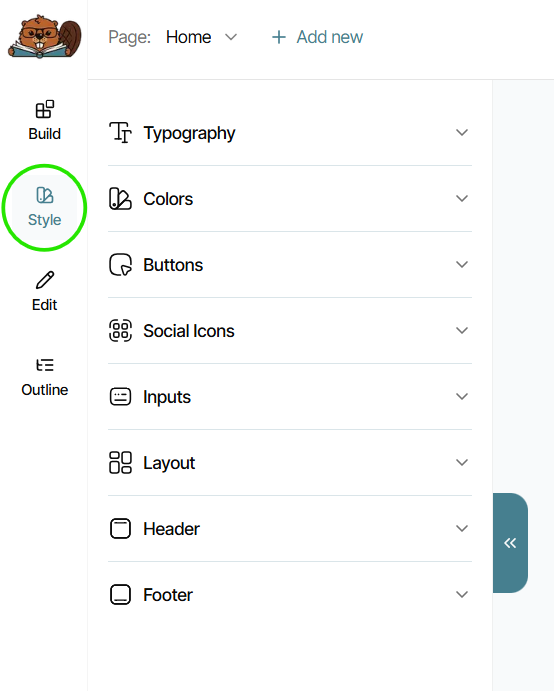
This will open your template's universal design theme settings, where you can alter things like fonts, colors, button styles, and more to better match your genre or brand across your site—not just on the page you currently have open. Using Style settings is a great way to easily and quickly customize any template to better reflect your needs, and make sure the design is still cohesive and consistent throughout your site.
Under Style is also where you'll make any and all adjustments to the Header and Footer across all pages of your site. Because Headers and Footers are universally the same across every page, you can only edit them in your universal Style settings, which you can access by navigating to them under Style, or by simply clicking on them inside the builder viewer to open their Style settings.
You can learn more about the Style tool at this support article.
Add Your Personal Content
After you've adjusted some Style settings to better reflect your genre and author brand, you'll next want to click into each section across your site and replace or rewrite any placeholder content originally included in the template. These are items like book cover images, author headshot images, book titles and descriptions, or your author brand logo in your Header and Footer.
If the original template uses generic images for design purposes, such as background images or other supplemental images, you can feel free to keep these in place if you would like. You can usually adjust the background color behind the image to make it more unique to you, or it's also a great additional opportunity to replace any such images with your own that might better showcase your author brand or business. Consider any images you use in your books themselves or in your marketing and/or social media materials for a cohesive look everywhere.
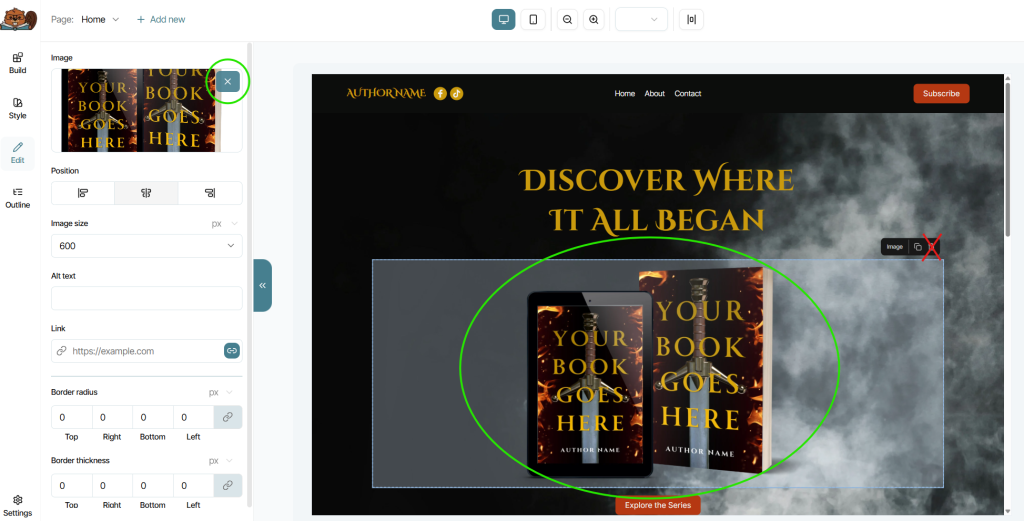
Tool Tip: When replacing an image inside a template, you'll first click on the image inside the Builder to select it, but be careful not to delete the entire image Element from the template. To just swap out images, don't click the garbage can icon—instead, click the 'x' icon in the Element editor to the left:
Starting with your website goals first is a great way to pick a template to build from. Then you can start making easy, genre-focused or brand-focused changes to any template by adjusting your Style settings and uploading your personal content across your site pages. And remember, you can edit as many templates in your Bookshelf account at a time as you'd like, so feel free to explore and experiment!
If you'd like to learn more about using the Builder, check out the Website Builder section of our Support Center.