
In addition to having all your product pages created for you automatically whenever you add a book to your Bookshelf account, an automated cart page is also created to supplement and streamline a shopper's checkout process.
This is an automatically-created page that has been optimized for smooth checkout processes and to help diminish cart-abandonment. For this reason, the layout and content of all automated cart pages are pre-set and can't be altered, but there are a few design options you have the ability to adjust.
How to Access Your Cart Page
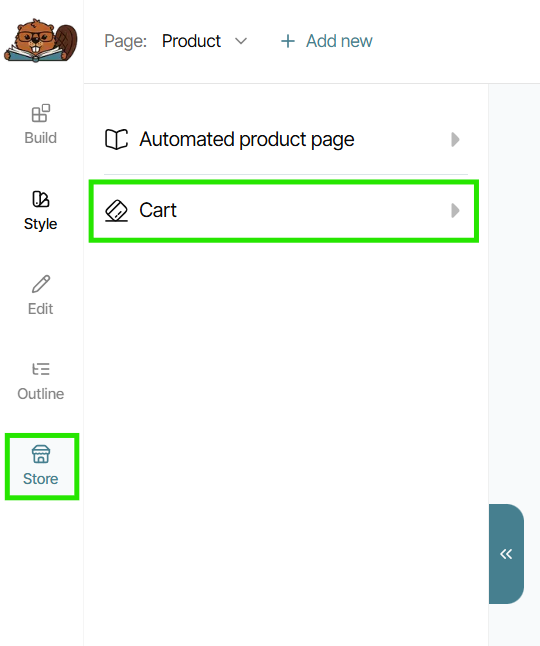
To see an example of your cart page similar to how shoppers on your site would see it, open your website in the Page Builder, then click on the Store tool in the left-side menu, and then select the Cart option from the list:
A sample cart with placeholder book products will populate in the viewer. These are not books associated with your Bookshelf account or author website in any way, and have been created by our team just to demonstrate how the cart page would look if someone added multiple products to their cart.
The only elements in this preview that are relevant to your own website are the design details, which are pulled directly from the Style settings you have set for your website. You can learn more about Style settings at this support article if needed.
Adjusting Cart Page Design
As with your automated product pages, your automated cart page (as well as the final checkout page, which is not available for previewing in your Bookshelf account at this time) pulls all its design elements from the Style settings you've selected for your website as a whole.
While you cannot independently adjust your cart page's design outside your Style settings, you can select some of the Style elements you would like to use on your cart pages. To do this, just click on the Cart menu option to open the available settings. They are:
- Font style
- Button style
- Field style (more relevant to the checkout page, where customers are inputting information)
- Card background (refers to the box around each product and the "order summary box")
- Accent color
- Text color
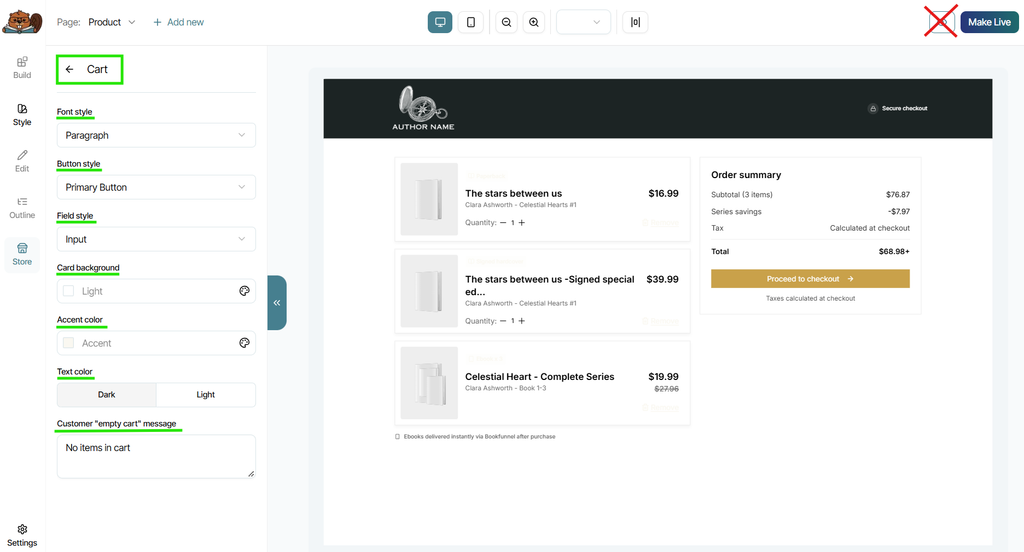
From these settings, you can also select what message you would like to display on this page when a customer clicks into their cart, but hasn't added any items to it yet. This is the "Customer 'empty cart' message" setting.
In the above screenshot, you'll also notice a red X over the Builder's preview button. This is because a live version of a cart page can't be viewed because it doesn't actually exist in a way that's viewable—no "real" products have been added to a cart to be able to then view that cart. You can still click the preview button, but it will instead show you an example of a product page.
Questions about any of the automated pages built into your Bookshelf website? Reach our team directly at support@thebookshelf.io.