
Because all product pages are automatically created whenever you add a new book to your Bookshelf account, linking to those pages so they're then live on your site works a little differently than it does for more traditional website pages.
Though every product page is created and updated internally when you add a book and formats for that book, it lives within in your website settings "unseen" until you manually make it an integrated part of your website or otherwise independently visit its URL. Integrating it into your website just means linking a button, book cover, or link directly to that product page, creating a pathway for visitors to actually get to it.
All automated product page URLs, however, will always follow the same convention: yourwebsitename.com/books/your-book-title. So if you ever need to know a product page URL outside of working in the builder, this is how you can construct it.
To link your product pages to your website, open your website in the Page Builder and head to an element on a page that you would like to make sure takes visitors to a specific related product page when they click on that element. For example, if you have a section on your homepage about a featured book, you might want the button in that section to take the visitor directly to that book's product page:
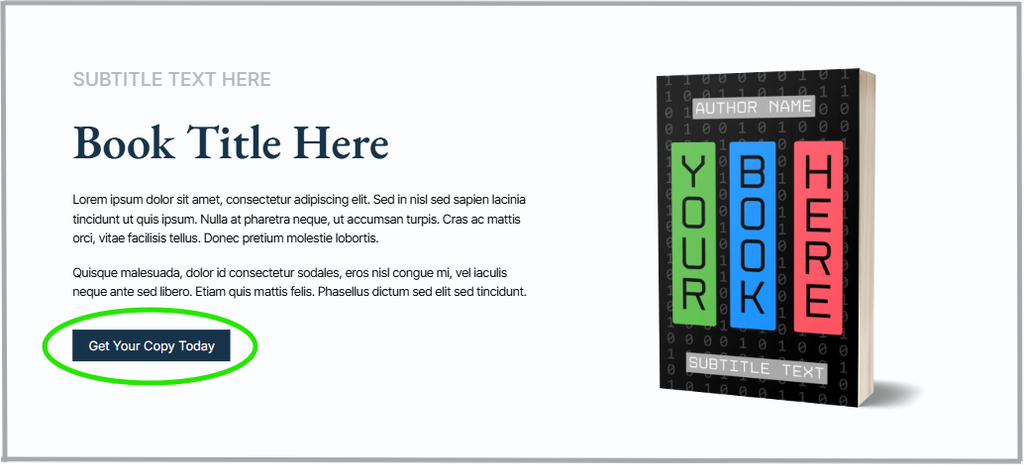
When you click on the a button element (or any other type of linkable element, such as an image), its left-side edit options will appear. Locate the "Links" section of the edit options. Here, you can either add a URL to link to manually, or you can search for internal pages of your website to link to by clicking the blue link icon to the right of the link input field:
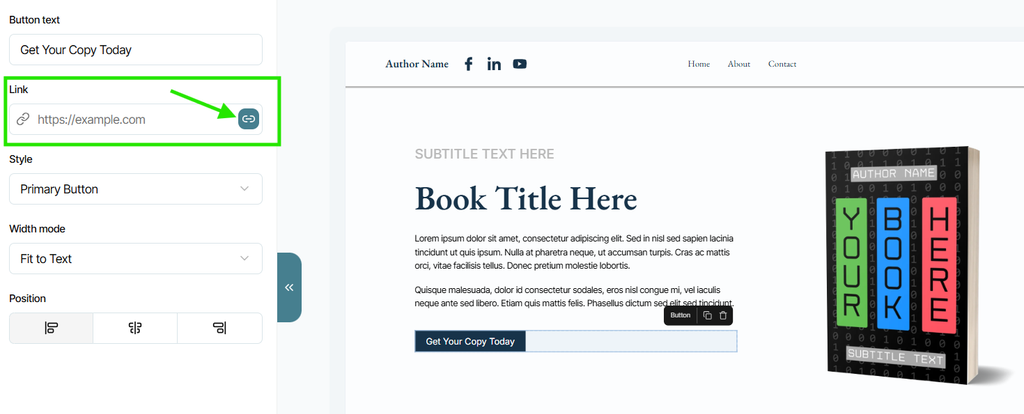
Clicking the link icon opens a drop-down list of all the current pages that exist for your website, including automated product pages. The list is divided into "main" pages at the top, and Product pages at the bottom. Just scroll down to see your Product pages, listed by book title. You can also search for the automated product page you're looking for by typing part or all of its title into the search bar at the top of the dropdown list:

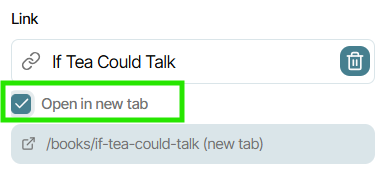
Select your book, and the button (or other) element you're working on will now officially link to your selected product page. You can also select whether you'd like the linked product page to open in a new tab when clicked, or if you'd like it to open in the same window, in which case you'll just un-check the preselected box:
To see how this new linked product page looks on your live website, remain on the same page you've been working inside, and click on the previewer icon in the upper right corner of the Builder (the eyeball icon):
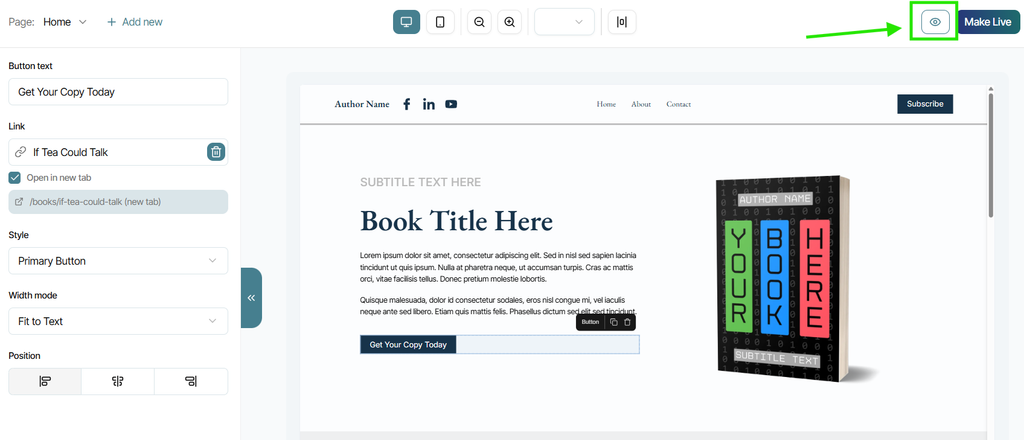
This will open a clickable preview of the current page of your website that you have open in the Builder as a visitor would see it, meaning you can click on the button you just linked in order to go to the product page you linked it to.
Remember, if you would like to make any changes to your automated product pages themselves, you will need to either adjust the information included on the book's informational page under "Books" in your Bookshelf account (for content changes), or you'll need to make adjustments to your Automated Product Page settings under "Store" inside the builder for display or Style changes.
For guidance on how adding books creates your automated product pages, visit this support article.
For guidance on how to adjust some of the display settings of your automated product pages, visit this support article.