
In order to sell books directly to readers through your Bookshelf website, there's some backend setup and information you'll be required to provide first. This is because The Bookshelf is your Merchant of Record, meaning we're taking care of all the payment processing and automated fulfillment that happens for every purchase of one of your books by customers around the globe.
To that end, we first need to make sure you read and sign our Reseller Agreement contract, verify your identification, provide us with the proper tax documentation for your direct sales payouts, and provide accurate bank information so those payouts get to you.
All these steps can be completed in a guided, 10-minute process inside your Bookshelf account, which we'll walk you through here.
How to Access Seller & Payout Setup
You can directly access this setup process by logging into your Bookshelf account, clicking on the Settings option in the left-side menu, and then clicking on the Payouts tab at the top. To start the process, just click the blue "Set Up Direct Sales" button on the Payouts tab screen:
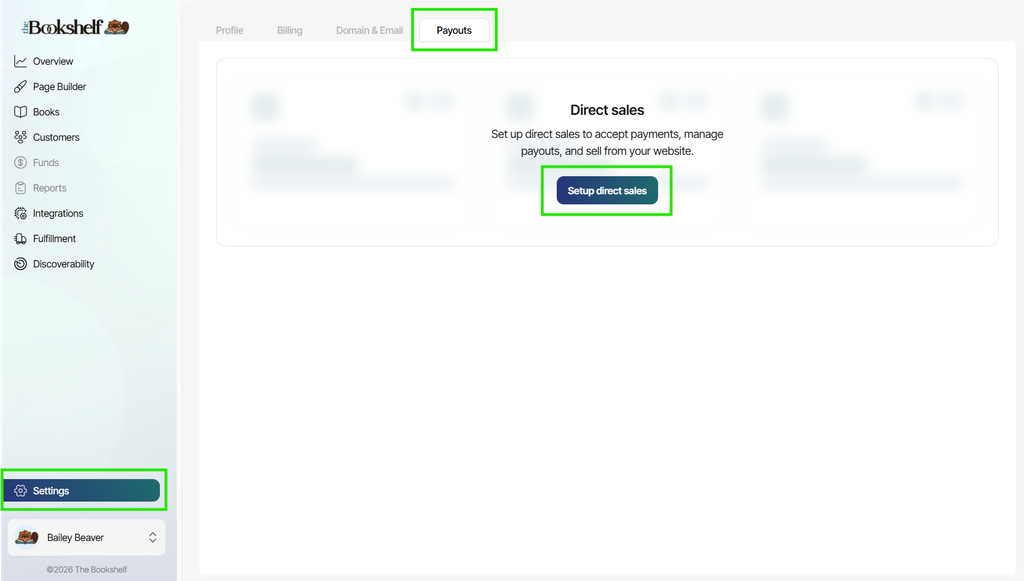
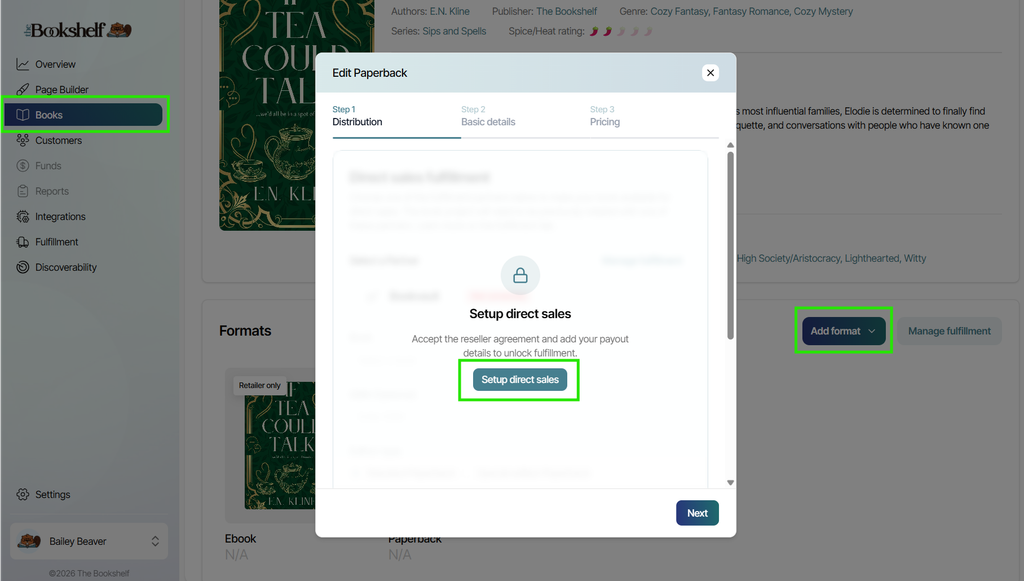
Alternatively, you can also access this same setup process if you have already added at least one book to your Bookshelf account. If you have, just click on the Books menu option, then click one of your book projects. When on that book page, click the blue "Add Format" button on the right side, and select any format.
When you do, a popup modal will appear for setting up the format you've selected, and the first option for the format will always be direct sales. If you haven't gone through the setup process, you'll see the screen below directing you to do so. Just click the blue "Set Up Direct Sales" button on the popup to get started:
Step 1: The Reseller Agreement
As your Merchant of Record, The Bookshelf takes on a large portion of the responsibility for things like:
- Payment processing
- Tax collection and reporting
- Consumer and sales compliance
- Financial and administrative setup and reporting
- Customer service
...and more. And we do it for a variety of regions all around the world to ensure that you can have global customers who have a great shopping experience.
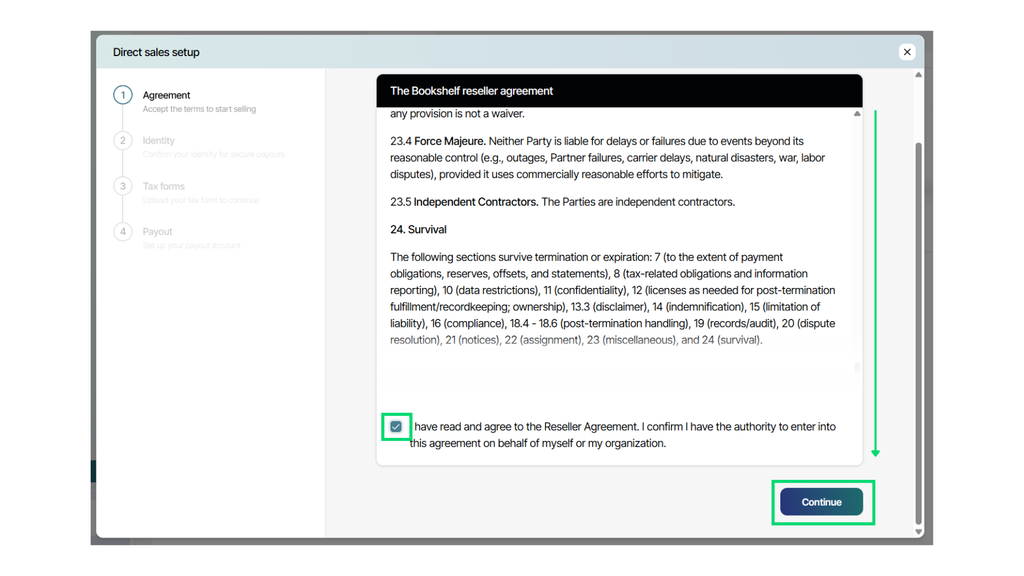
But we can only carry out these responsibilities when authors who use The Bookshelf to sell direct also meet certain expectations and terms of the service we provide. The Reseller Agreement lays out what these terms and expectations are, and in order to sell direct via The Bookshelf, you must accept and adhere to them.
Take some time to read through the entire agreement by scrolling through it, and at the very end of the agreement you'll find an agreement checkbox. Once you select it, the blue "Continue" button will become available for you to click and move onto the next step.
Step 2: Identity Verification
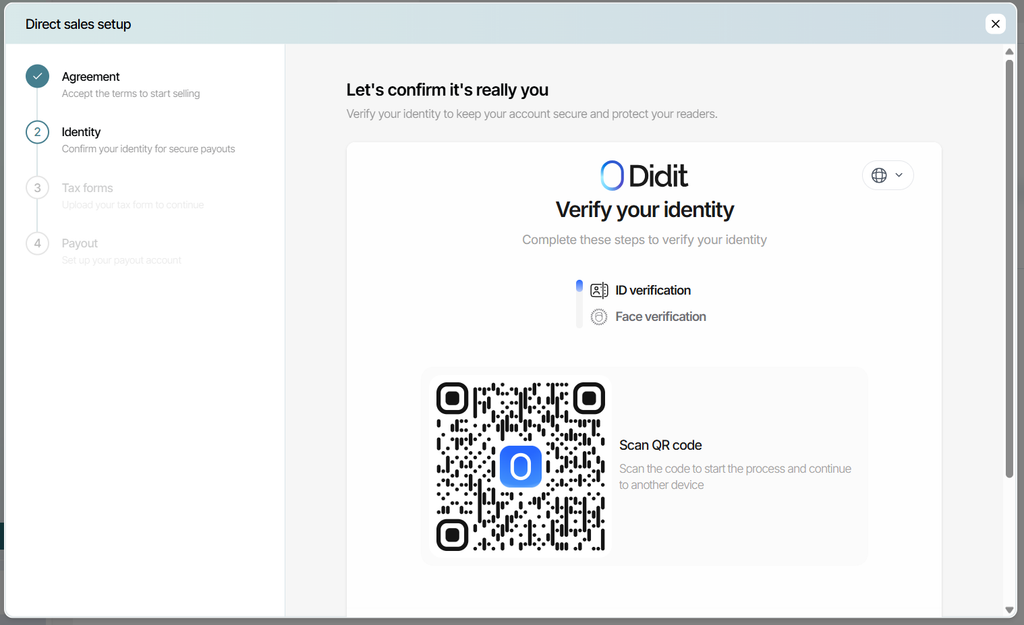
In order to prevent fraudulent or non-human accounts from being set up for direct sales on The Bookshelf, we need to verify that you are a real person. We verify real-person identity via a trusted provider called Didit. So for this step, use your real identity that you have matching ID documentation for.
Note that the identity you verify here does not affect being able to sell books via a pen name in any way, and you will still be able to do so. Your identification in this step also does not need to match the tax and banking information coming in steps 3 and 4, allowing you to set those up as business entities or as may be otherwise preferred.
For this step, you will need a smartphone with a camera and internet access, as well as one of these official forms of identification:
- State ID
- Passport
- Driver's license
- Residence permit
- Health insurance card
Start by opening your camera's phone and scanning the QR code presented to you on the direct sales setup page:
On the webpage that opens on your phone as a result of scanning the QR code, tap the blue "Continue" button:
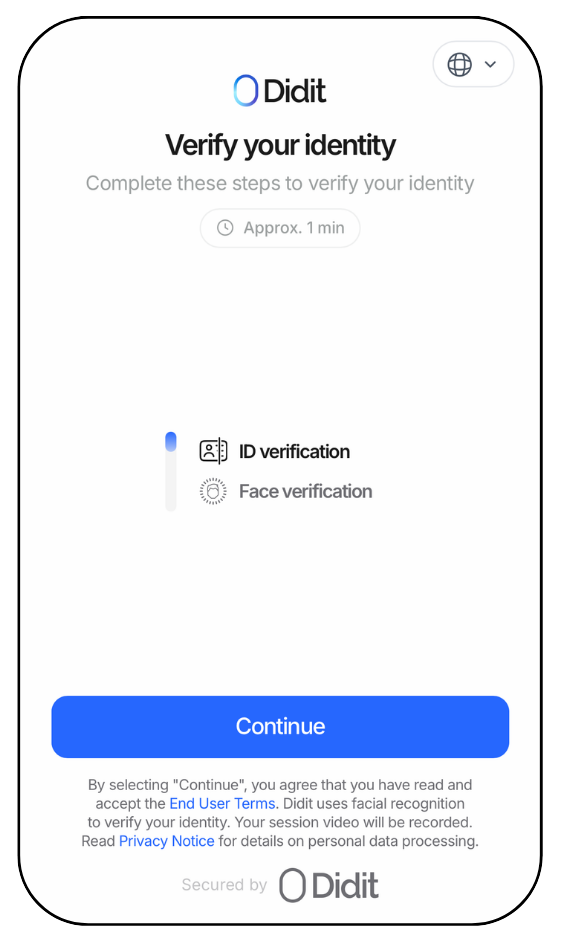
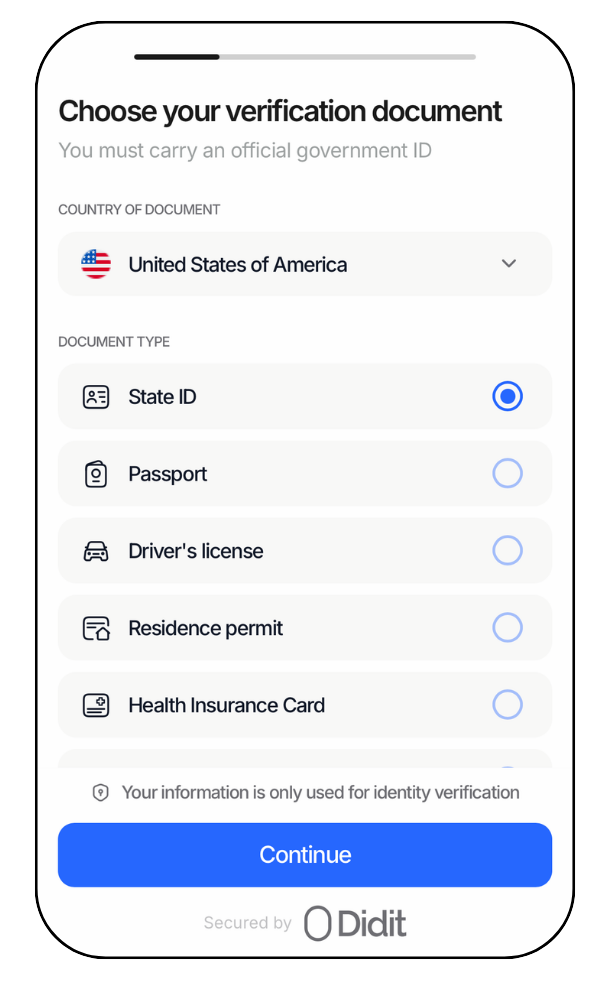
Next, select the country you reside in (and that your ID shows you reside in) from the dropdown list at the top. Then select the type of ID you would like to use to help verify your identify. You will need access to this real ID to take photos of the front and (as needed) the back.
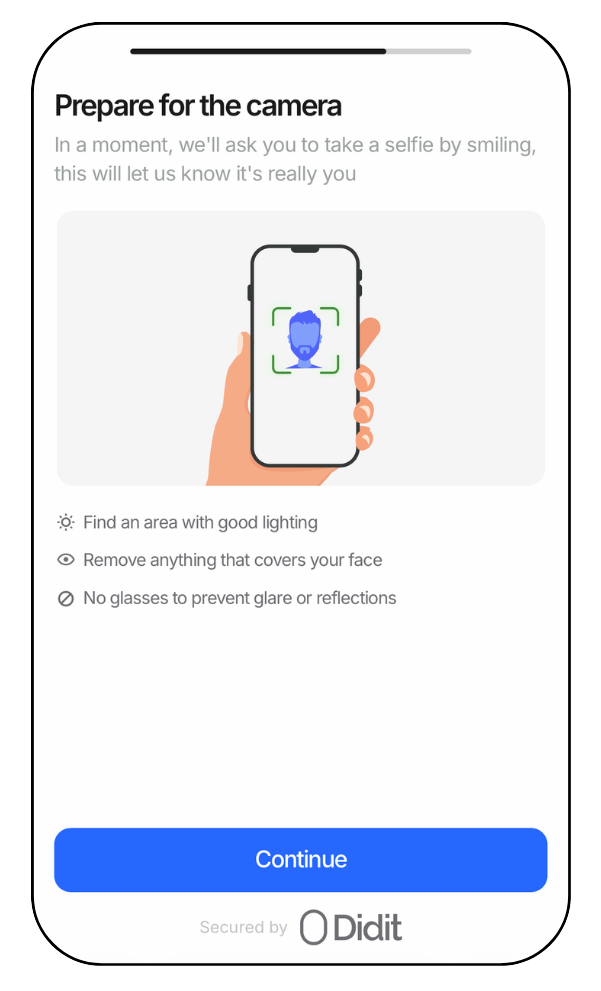
Once you've successfully uploaded your ID photos, you will next need to take a live photo of yourself to match with the ID. Just follow the steps laid out inside Didit to do so:
Once Didit has verified that your ID matches your photo, the verification will be completed with a confirmation screen:
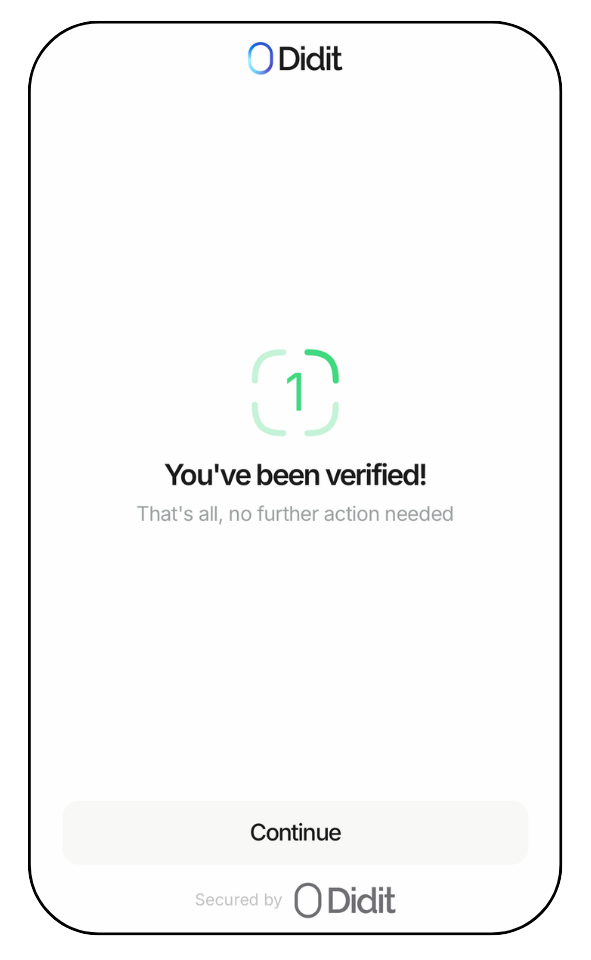
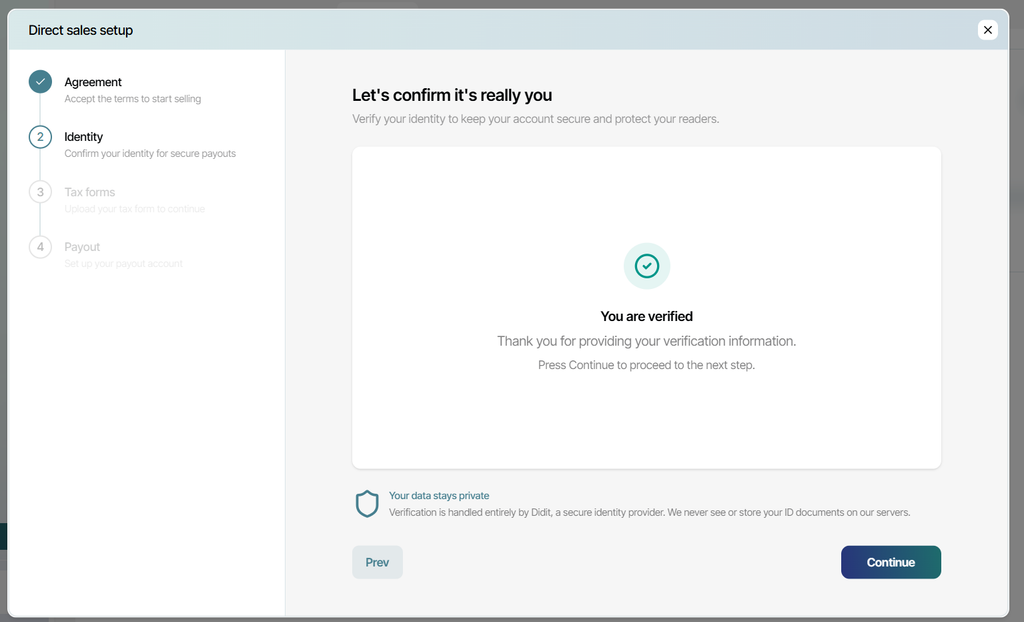
When you see the screen above, your browser will automatically redirect you to the Bookshelf login screen, but can navigate back to the Bookshelf account screen you were previously working in, which will automatically change to let you know you're verified and can proceed to the next step in the direct sales setup process:
Step 3: Tax Forms
As Merchant of Record, The Bookshelf directly collects all proceeds from every direct sale each author makes. After subtracting relevant printing, platform, and credit card fees from those gross sales, The Bookshelf then sends each author their cumulative remaining net earnings for sales of their books.
The first step is to click the blue "Submit Form" button, and then select which tax form is relevant to you and your author business.
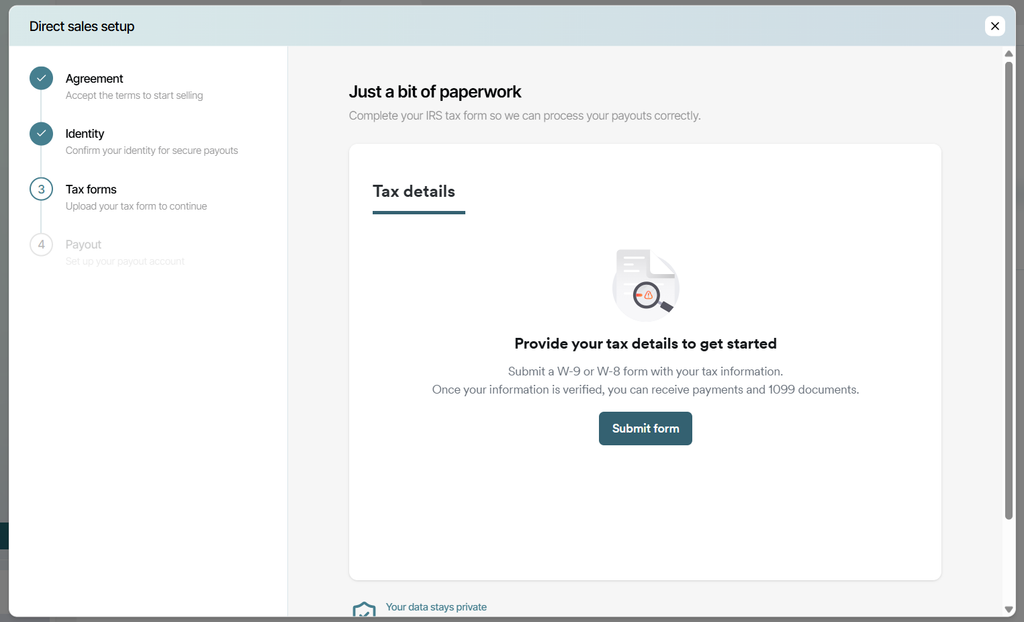
Making these types of payouts to authors is considered a type of "non-employee compensation," which requires a specific tax form to be provided by every author selling direct. This makes it so that The Bookshelf can not only provide earned payouts, but also provide the reseller with the necessary tax documentation needed to file their annual taxes.
Options for tax forms include:
- W-9
- W-8BEN
- W-8BEN-E
- W-8ECI
- W-8EXP
- W-8IMY
- 8233
Once you've selected the proper form, it will populate so you can fill out all the required sections that are relevant to you and your business.
Once you've filled out the form according to your personal or business tax information, you can submit it, and our internal secure, verified tax and payment processing system will work on verifying that your tax documentation is correct and usable. during this phase, you'll see a yellow "Pending Verification" label next to your submitted form:
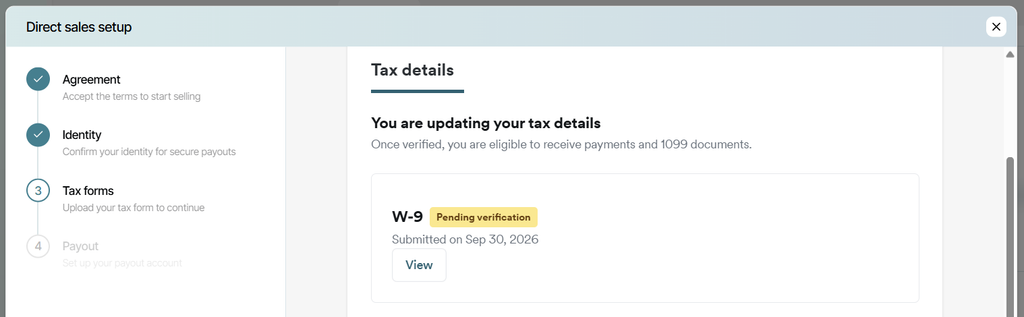
Although verification most often happens within just a couple minutes (and sometimes instantly), do note that in some cases it may take upwards of 10 minutes. During this time, you can leave this process and come back to check on it, picking up where you left off.
When verification is complete, a blue "Done" button will appear in the lower left corner. Click this to check on the verification status. When approved, the yellow "Pending Verification" tag will change to a green "Ready" tag:
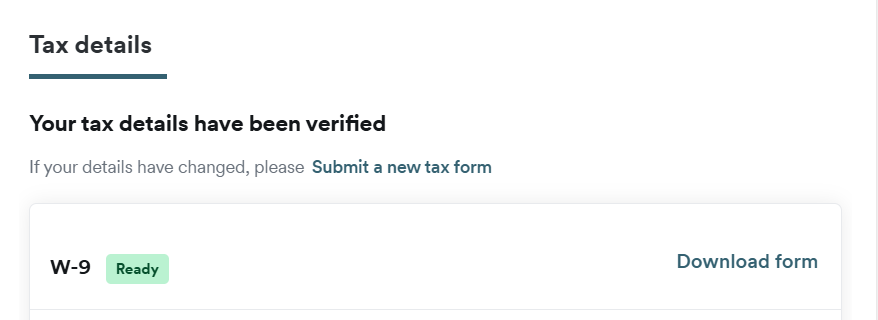
If you come back at a later time and your tax form is still labeled as "Pending Verification," first try giving The Bookshelf a hard reset. Do so by holding down Shift + Ctrl + R (on a PC) or Shift + Command + R (on a Mac) on your keyboard. The page will refresh, and the verification status should change to either be completed or denied. If it is denied or the status is still labeled as pending, either try uploading your form again, or reach out to our support team for assistance at support@thebookshelf.io.
Step 4: Banking Information
Once your tax information is complete, the last piece of information The Bookshelf needs to know is where to send your earned payouts. A banking institution of some type will be required, though a variety of types of transfers into your bank account are available.
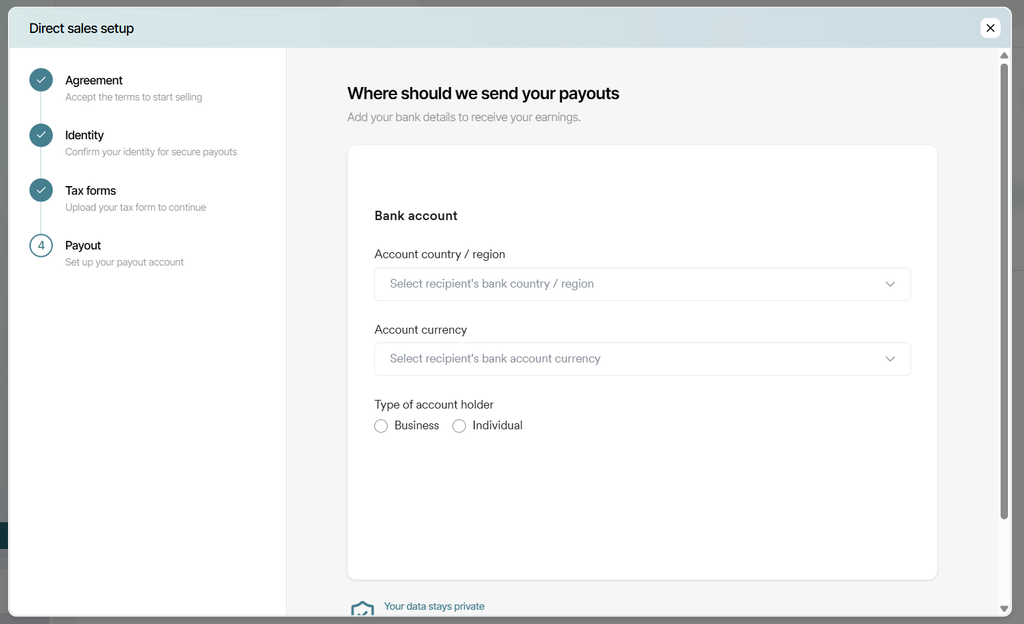
First select where your bank is located, the currency you'd like to be paid in, and what type of payment you'd like to receive. When making your selection, please note that some types of transfers are free, while others will include fees. These are the payment types currently available:
- ACH
- Fedwire
- FedNow
- SWIFT
Next, you'll input all the required bank information, such as routing number (if applicable), account type, account name, and name of account holder. You'll also be required to include some recipient information, primarily their address.
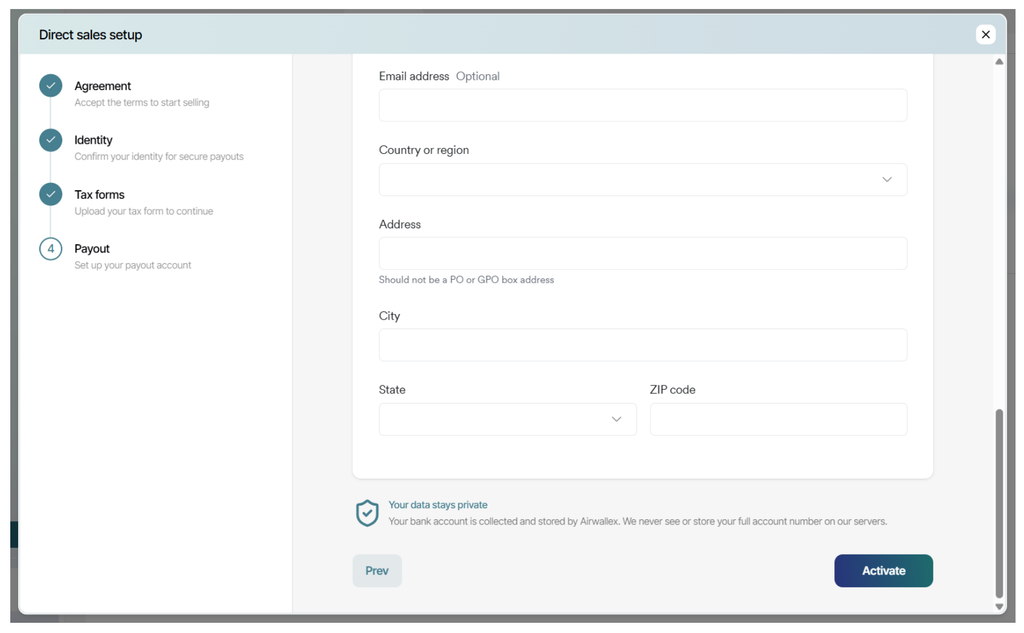
When all necessary information is complete, click the blue "Activate" button in the bottom right corner. If everything is verified as accurate and complete, you'll have just completed the direct sales setup process and are ready to start selling directly to your readers!
If you run into any questions or hurdles as you go through these steps, you can always reach out to our team directly at support@thebookshelf.io.