
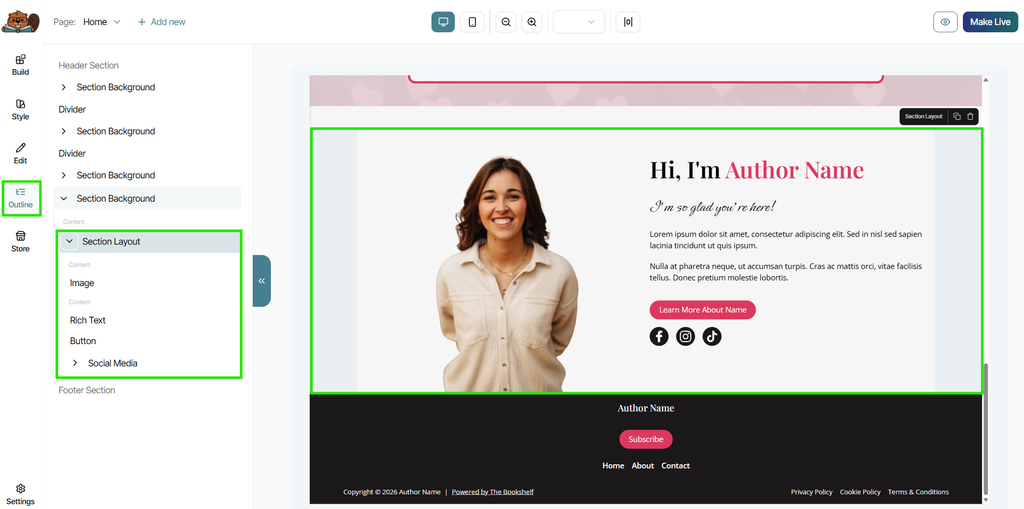
The Outline tool is located in the left-side menu of the Page Builder, and it shows a structured, hierarchical view of all the Elements on your page in basic text form. Think of it as a “table of contents” for your page layout: it helps you see everything at a glance and understand how all the various Elements within a Section Layout or Section Background are organized on the open page of your website.
How the Outline Works
Every Element on the page you currently have open in the Builder appears as an individual item in the Outline. Nested elements (for example, an image inside a Section Layout which is inside a Section Background) are displayed as indented items underneath their "parent" item.
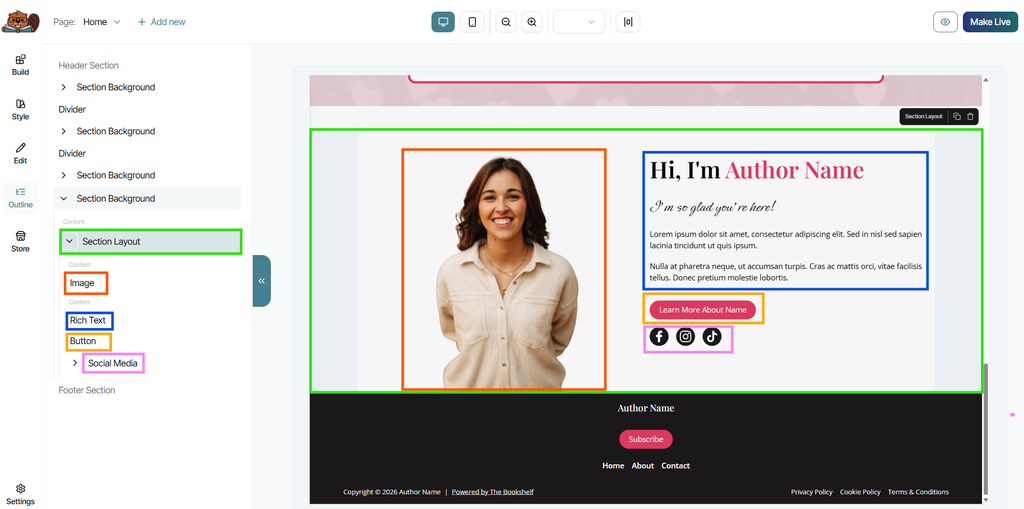
Clicking on the Outline Tool in the left-side Builder panel will open a collapsed version Outline of the entire page. Clicking on an Element in the viewer will open that Element's list-time in the Outline, and visa-versa; if you click on a list-item in the Outline, it will automatically select this Element within the viewer as well, navigating you directly to where it's sitting on the page. That way you can locate and select any Element quickly and with ease from within the Outline.
You can also open an Element's Edit options from within the Outline by clicking on the list-item, then clicking on the pencil icon next to the name of the item and clicking Edit. This will take you out of the Outline and into the Edit tool instead so you can make your changes directly to that Element.

Best Ways to Use Outline
Though you can't (yet!) click and drag Sections or Elements in your Outline to move those same sections or Elements on the actual page of your website itself, the Outline is still a great tool for understanding and organizing the entire hierarchy of your content at a glance. It also helps you navigate to certain parts of your page quickly by jumping directly to any selected part of a page without scrolling.
The Outline tool can also help to select those Elements that may be harder to hover over and click with with your mouse in the viewer itself, such as Background Sections hiding behind lots of other Elements or Divider Elements that aren't wide enough to click on within the viewer. So if you're trying to edit something that you just can't seem to land on, head to the Outline to access it in a different way.
By working on your site at this bird's-eye level, you can also more efficiently find, duplicate, and delete Elements or entire sections. To delete or duplicate a selected Element, you'll click on the corresponding icons that appear in the upper right corner of the Element when it's selected within the viewer.
Think of the Outline as a handy additional tool to your site Builder. While not necessary to use to achieve your preferred customization, this "map" of the page you're currently working on will help you to keep everything organized, easily accessible, and can help make any editing you do both faster and less error-prone.