
Changing Your Current Password
If you are able to access your Bookshelf account and know your current password and would just like to change or update it:
1. Go to app.thebookshelf.io/login and log into your account.
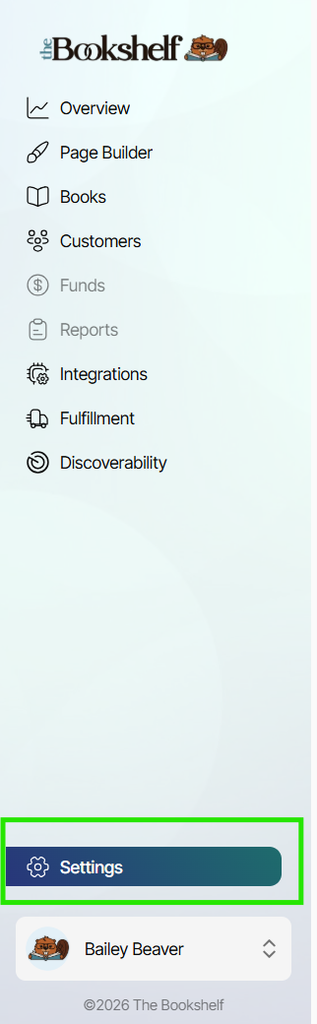
2. Click on Settings near the bottom of the left-side menu:
3. Under the Profile tab within settings, update your password in the "Change Password" section by inputting your current password, your desired new password, and confirm the desired new password. Then click "Update Changes":
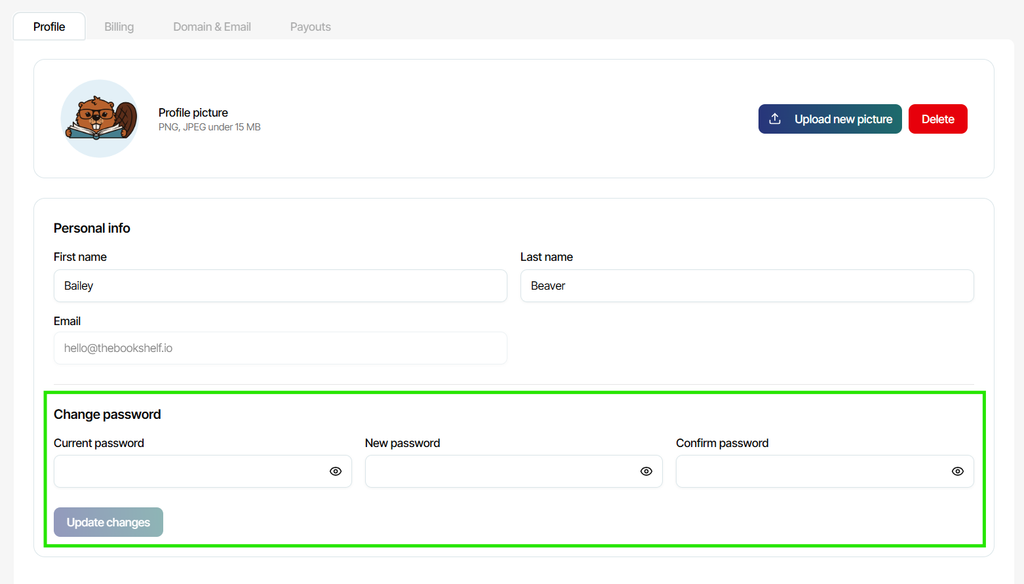
You will log into your Bookshelf account used your new updated password the next time you log in.
Resetting a Forgotten Password
If you have forgotten your current password and cannot access your account and need to reset your password in order to regain access:
1. Go to app.thebookshelf.io/login
2. On the sign-in screen, click the "Forgot Password?" link below the password input space:

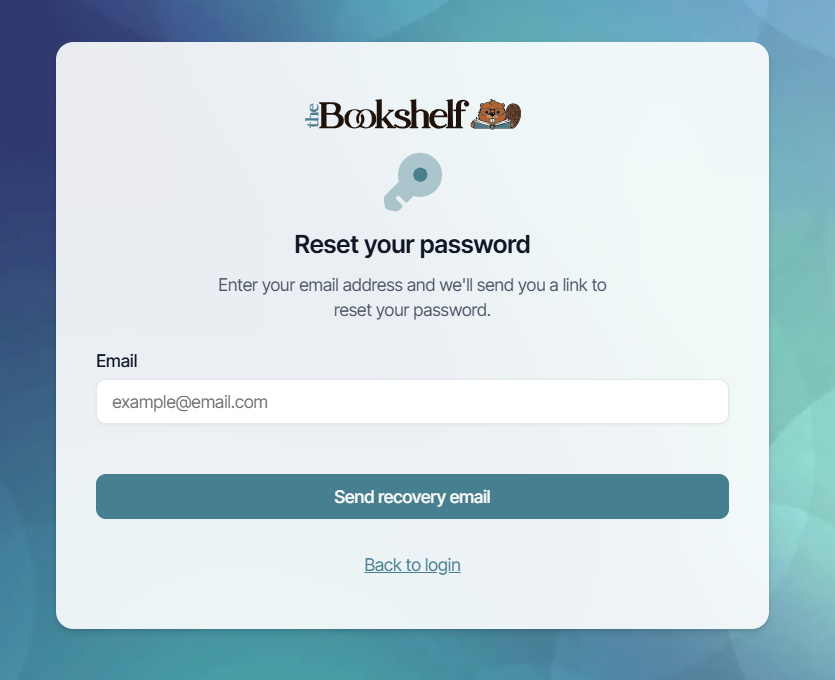
3. On the next screen, enter the email address associated with your Bookshelf account, then click "Send recovery email":
4. Check your email inbox to locate the password reset email sent to you. If you don't see it in your main inbox, check your spam folder.
5. Click on the "Reset My Password" link inside the email.
6. A new window will open where you can create your new password. Be sure to click "SAVE" when finished, and use this new password to log into your Bookshelf account at app.thebookshelf.io/login.