
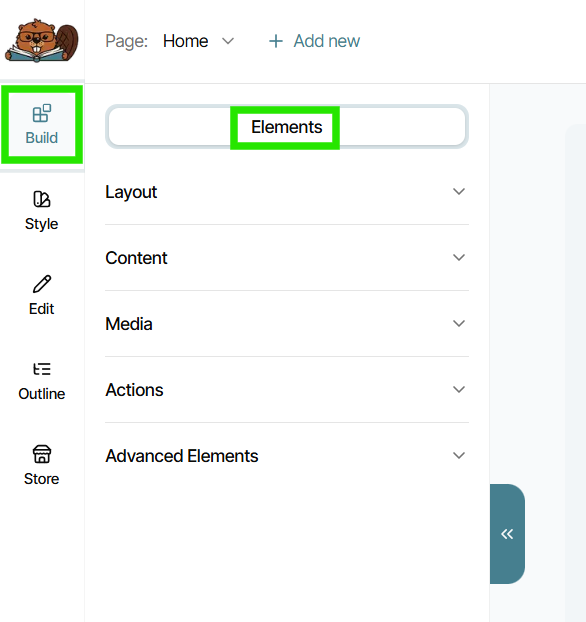
The Build tool inside the Page Builder allows you to add individual Elements to any page of your website. Elements are the building blocks of a website, such as layout containers, text, buttons, images, and more.
The Elements inside The Bookshelf's Build tool have been created with specific settings and guardrails already in place to provide an equal balance of customizability and proper website coding. It's what makes building a custom website inside The Bookshelf—whether from scratch or by adjusting a pre-built template—so much easier, no matter your level of skill.
Types of Elements to Build With
The Build tool is divided into categories based on specific types of Elements you can currently add to any website project:
- Layout:
- Section Background
- Section Layout
- Content:
- Rich Text
- Callout Box
- Countdown Timer
- Accordion List
- Media:
- Images
- Embedded Video
- Actions:
- Button
- Mailing List Form
- Contact Form
- Social Media Button
The 'Advanced Elements' section contains "raw" Elements, or Elements that have not had helpful settings and guardrails built into them to make the building process easier. They are the individual pieces that make up the specialized Elements in the other categories, meaning that while they do allow for more precise customization, they involve a much steeper learning curve to use. For this reason, we recommend most authors build using the Elements in the other categories, which still provide highly customizable options.
How to Build a Section from Scratch
Though our best recommendation is to modify a pre-built template that already has sections completely constructed for you, there may be cases in which you'll want to build your own section from start to finish. To do so, there are some basic structural steps to make sure you take with every section you create.
- Start by dragging and dropping a Section Background Element from the list and onto your page. This will be the backdrop behind the section you build.
- Drag and drop a Section Layout Element into the Section Background you placed. When building a website, Elements like text, images, and buttons all need a container to sit inside that holds them properly. The Section Layout is that container, so you'll place any additional Elements inside it.
- Modify your Section Layout Element to your liking. You can divide it up into 1, 2, 3, or 4 containers (columns) to place other elements side by side within the section. And while you can stack as many Elements inside each column vertically as you would like, you cannot place Elements side by side in a single column. If you would like Elements to sit next to each other, divide your section into columns and place your Elements within each of them.
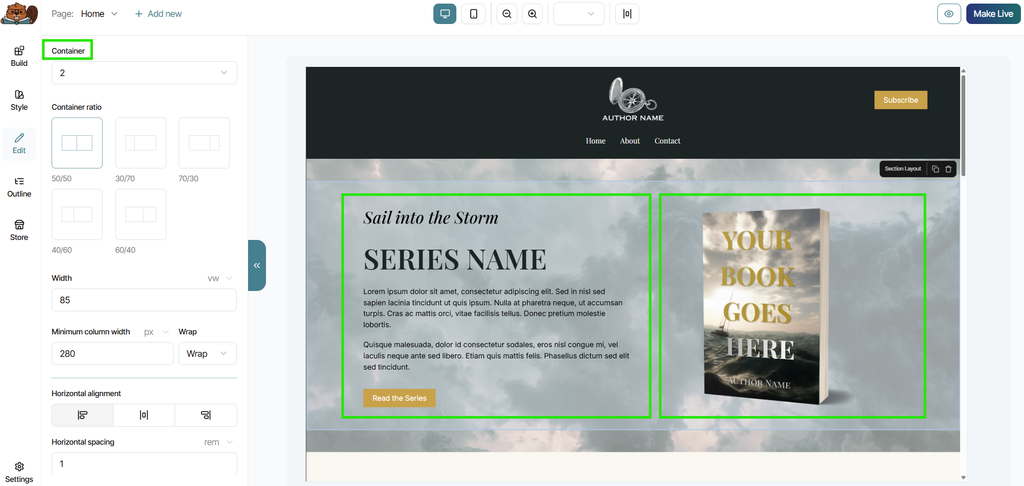
After you have your essential building blocks of Section Background and Section Element placed, you can adjust their available settings (such as changing the Section Background's color or uploading an image to it, or adjusting the container ratio of the Section Element, the total width of the Section Element, or how other Elements will sit inside each container via the horizontal alignment setting).
Then you can experiment with dragging and dropping other Elements into your Section Layout Element to customize to your liking. Each Element you place will have its own Edit settings to adjust after you place them, which you can learn more about in our walkthrough of the Edit Tool.
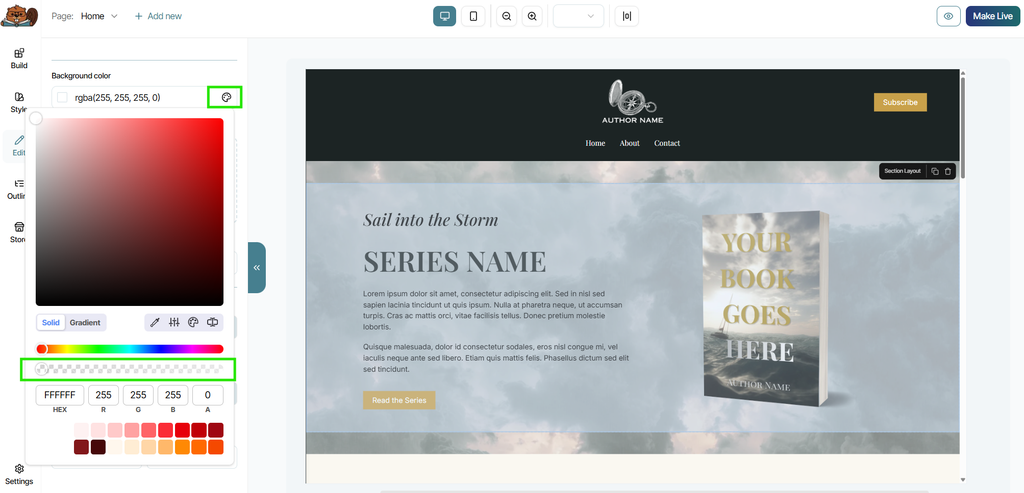
Pro Tip: Your Section Layout Element will have its own background that sits on top of your Section Background Element. If you would like your Section Background color or image to be the same as your Section Layout's background, just make your Section Layout's background 100% opaque. To do this, select the Section Layout Element, click on the color palette, then adjust the opacity setting all the way to the left:
Want to watch a walkthrough of how to build a section from scratch? Check out this tutorial on our YouTube channel.
Additional Building Tips
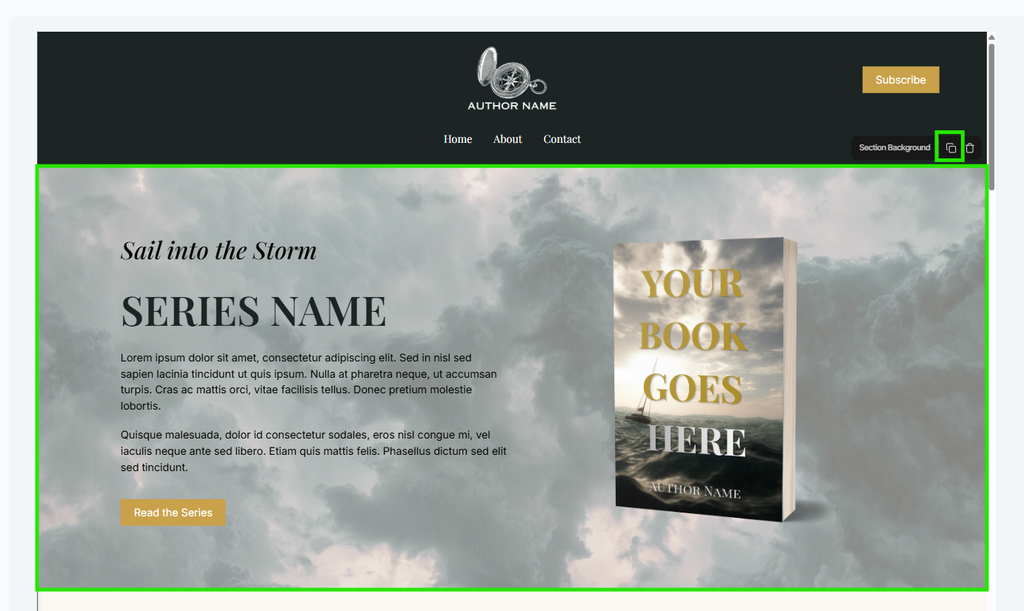
If you decide to build a page of your website from scratch, it can be very helpful to use duplication to your advantage for quicker and more uniform builds. You can duplicate individual Elements or entire sections you've already built by clicking the Element and seeing additional options to appear above its upper right corner. Just click the duplicate icon, and the builder will automatically create an exact replica just below the Element. To duplicate an entire section you've built, make sure to click on the Section Background Element containing everything within that section, then duplicate the Section Background, which will duplicate everything inside it.
Every section you build from scratch will always adhere to that project's Style settings, unless you manually override them for each Element you place. To learn more about how Style settings work, visit our Style Tool article.
The Bookshelf is continuously creating and adding new pre-built Elements into the Build tool to help you easily customize your website even further. So be sure to check back frequently for new Elements that you can add to your site to help it stand out even more.
Questions about how to achieve a specific layout or look while building your website? Feel free to reach out to our team for guidance at support@thebookshelf.io.