
The Bookshelf Page Builder is comprised of four* main tools that are used for building and editing your website:
- Build
- Style
- Edit
- Outline
These options will appear in the left-side menu when you're working on editing your website inside the Builder, and each one is meant to help you achieve different goals while constructing your site:
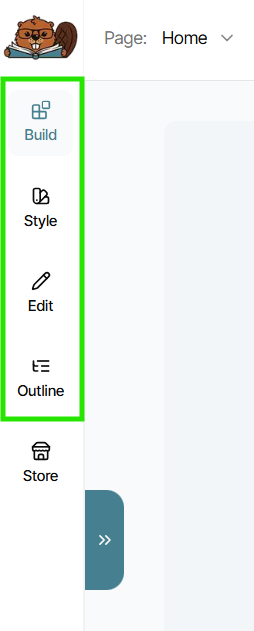
*Note that there is a fifth menu option labeled "Store" in the left-side menu within the Builder. This option, however, does not directly affect the way the main pages of your website are built, and so will not be covered in this overview. To learn what the Store Tool does, visit this support page.
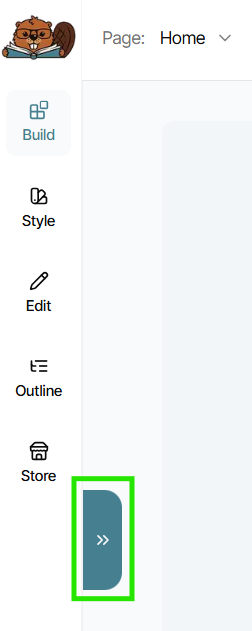
You can click the blue arrow button next to the left-side menu to open or collapse each tool's individual panel while building:
Build
The Build section gives you drag-and-drop building blocks to create your website pages exactly how you want them—no coding required. It's divided into categories based on what type of Element you need to place: Layout, Content, Media, and Actions.
Think of it like playing with Lego blocks: grab specialty, pre-built Elements like Section Layouts, Images, Rich Text, Buttons, and more to drag, drop, and arrange them however you'd like.
This tool is perfect for creating custom pages from scratch or building and adding additional Sections or Elements to an existing page or template.
The section labeled "Advanced Elements" contains every piece of a website as individual "raw" options. These elements don't have helpful settings or guardrails already pre-built into them, and so are meant for more advanced website designers and builders to build completely from scratch piece by piece. You can still achieve a highly customized website by using the other categories of Elements, but if you'd like to try building with Advanced Elements for full customization, the option is available.
To learn more about the Build tool, check out this article.
Style
The Style Tool lets you set universal design choices for your website. Changes you make here automatically apply across all pages, ensuring your site has a consistent look and feel.
This is where you'll set central design elements for your website such as colors, typography (fonts), button styles, and input form styles.
This is where you'll also make all selections and changes for your Header and Footer, which you can also access by clicking into them inside the Builder window. This is because your Header and Footer apply across all pages of your website, making them universal in style and function.
To learn more about the Style tool, check out this article.
Edit
The Edit section is the panel that opens automatically whenever you click on an editable Element on your page, such as section layouts, rich text, images, buttons, and others. It lets you change a pre-set selection of that element's content and settings directly, each with helpful presets and guardrails built in to best guide your building experience and the final result, but still with enough freedom to make it uniquely yours.
When you click on any placed Element inside the Builder, it will automatically open that Element's available Edit options. Any changes you make will update immediately on the page in real time and will always save automatically.
Depending on what type of Element it is, it will have specific Edit options when selected. For example, a Rich Text element will allow you to change font type, color, size, and more, all within a single block of text. An image element will allow you to change the image file, size, alignment, border effect, and more.
To learn more about the Edit tool, check out this article.
Outline
The Outline shows a structured, hierarchical text view of all the Elements on your current website page. Think of it as a “table of contents” for your page layout — it helps you see everything at a glance and understand how all the Elements placed on the page are organized by section.
Nested elements (for example, Rich Text or Images) are displayed underneath their parent container, such as a Section Background or Section Layout. Clicking on an item in the Outline highlights that element on the page so you can locate and edit it quickly.
The Outline tool is great for selecting Elements on a page that might be more difficult to click on directly within the page itself, or for navigating to a part of a page quickly, as clicking on an Outline item will automatically scroll to that part of your page and select the Element.
To learn more about the Outline tool, check out this article.
Summary
Whether you're editing a pre-built template or building your own sections and pages from scratch, you can:
- Use the Build tool to click and drag new Elements or pre-built Sections onto the current page
- Use the Style tool to set your universal theme design choices and edit your Header & Footer
- Use the Edit tool to make adjustments directly to each Element on the page (except those inside the Header & Footer)
- Use the Outline tool to quickly navigate to and select any piece of your website
Together, the Build, Style, Edit, and Outline tools can help you to achieve as much or as little customization for your website as you feel comfortable crafting.